
Software Download Manager IDM as an option many people because the file is relatively small and do not require large memory resources so as not to burden the PC performance. Setting IDM by default has given a good performance to download the files on the internet, but it helps you to try optimizing these settings again to get faster results and maximum.
Responding to a comment asking how to set Internet Download Manager IDM to be more optimal here I try to share tips, Ok we start .. I assume you already have an IDM and a neighbor has installed its own computer icon smile Optimize Speed Setting IDM Internet Download Manager for those who have not please download here: IDM 5.19 Build 3
Here are some tips to maximize the performance of IDM:
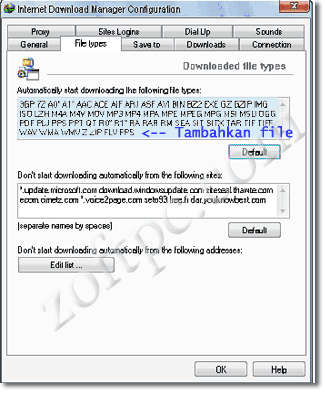
* Open your IDM, do not open another smile icon Optimize Speed Setting IDM Internet Download Manager and then click options, the image will appear as below, check / tick the box "use advanced browser integration" is useful for each of the download is automatic in the handle IDM on any browser on your computer.



Tidak ada komentar:
Posting Komentar